Quick start
This walks through a complete bake end to end, using Soft Body (Anim Sequence) — it needs only two assets, runs without starting a play session, and produces the same result every time.
You need a Skeletal Mesh and an Anim Sequence authored for a compatible skeleton.
1. Open the VertexCache Baker
Window ▸ Tools ▸ Ternary Labs ▸ VertexCache Baker (VAT)
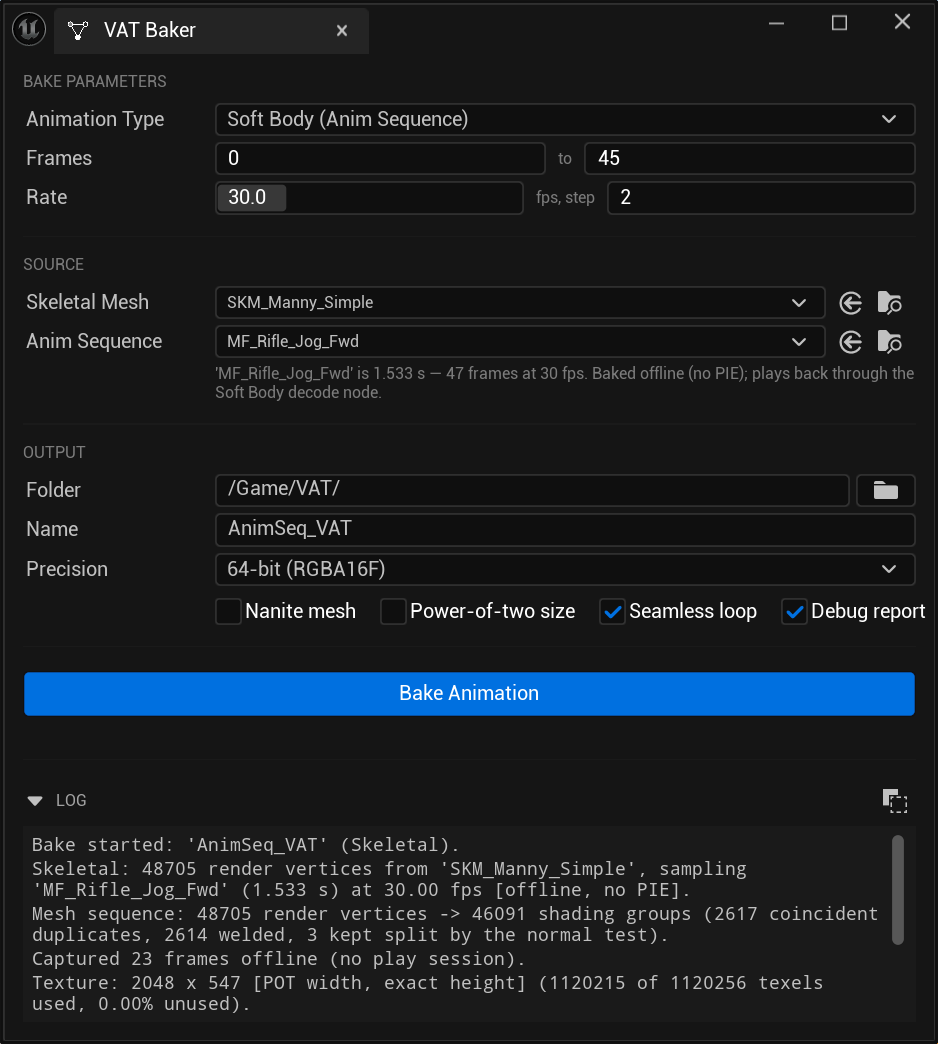
2. Choose the type and source
Set Animation Type to Soft Body (Anim Sequence). The actor-selection controls are replaced by two asset pickers:
- Skeletal Mesh — the mesh to animate
- Anim Sequence — the animation to bake
Pick the sequence after the mesh. The frame range fills in automatically from the sequence's length, and the hint below the pickers reports what it worked out — for example "'Run_Fwd' is 1.2 s — 37 frames at 30 fps."
Note
The mesh and the sequence must use compatible skeletons. If they don't, the bake stops and says so rather than producing a T-posing character.
3. Set the output
- Output Path — where the assets are written, e.g.
/Game/VAT/ - Asset Name — the base name for everything produced, e.g.
Run_Fwd_VAT
Leave Capture FPS, Frame Step and Texture Precision at their defaults for now.
4. Bake
Click Bake Animation. A Soft Body (Anim Sequence) bake runs immediately — no play session starts.
The Output logs at the bottom of the panel report what was produced, including the path of every generated asset. Warnings and errors appear here too.
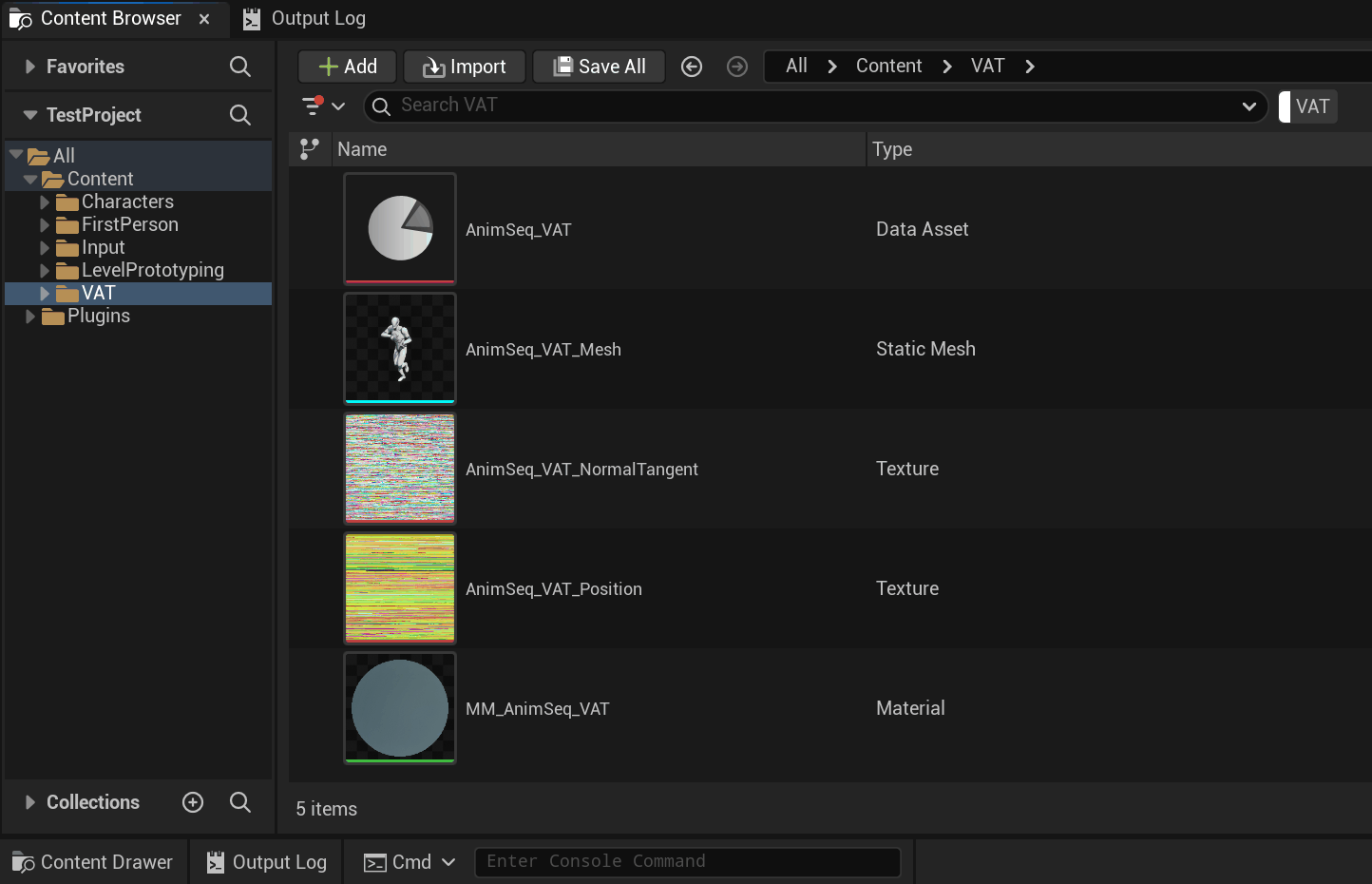
5. Build the material
Create a new Material and add the VAT Soft Body Decode node (right-click ▸ TernaryLabs Vertex Cache ▸ Soft Body). Soft Body (Anim Sequence) bakes play back through this node — they produce the same format as a Soft Body bake.
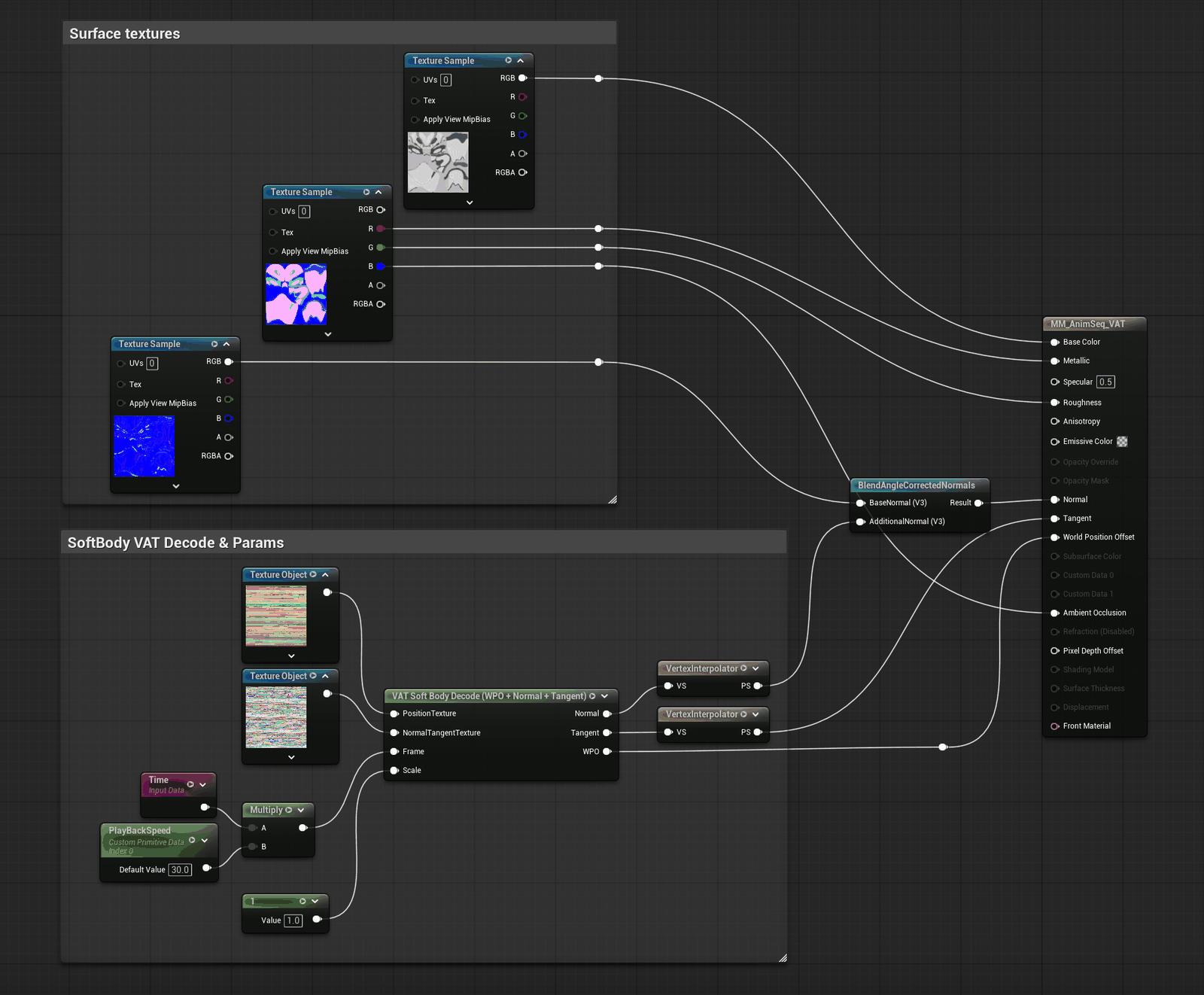
Wire it up:
-
VATAsset → your baked data asset (
Run_Fwd_VAT). This is a property on the node — select the node and set it in the Details panel, not by wiring a pin: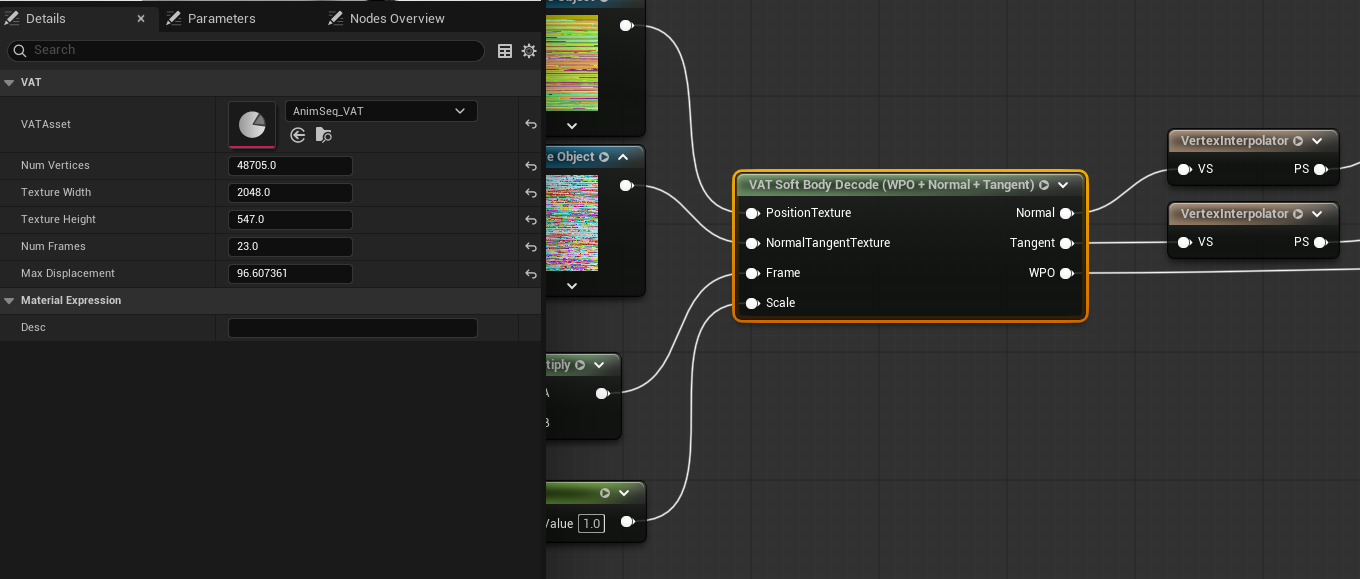
-
PositionTexture ← a Texture Object node holding
Run_Fwd_VAT_Position - NormalTangentTexture ← a Texture Object node holding
Run_Fwd_VAT_NormalTangent - Frame ←
Time× the bake's frame rate (a Time node into a Multiply, with the asset'sFrameRateas the other input). Looping is handled for you. - Normal → a Vertex Interpolator → the material's Normal pin
- Tangent → a Vertex Interpolator → the material's Tangent pin
- WPO → the material's World Position Offset pin
Then set these on the material itself (Details panel) — the node will refuse to compile without them, and the error message tells you which one is missing:
- Tangent Space Normal — enabled
- Num Custom UVs — leave default
- Always Evaluate World Position Offset — enabled
- Max World Position Offset Displacement — at least the bake's travel distance (the compile error states the exact number to use)
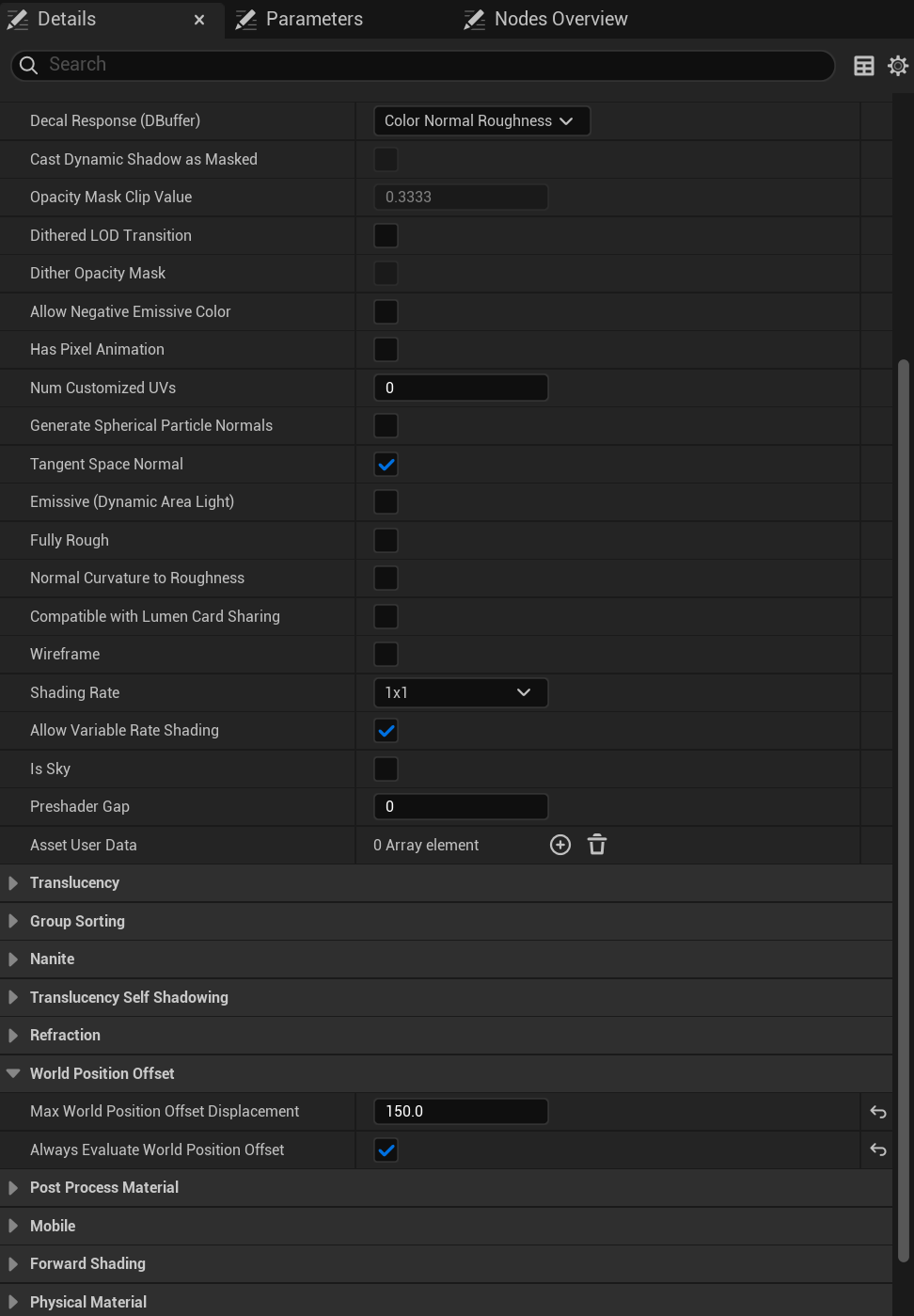
See Materials for the full per-node reference.
6. Place it
Drag Run_Fwd_VAT_Mesh into the level and assign your material to it. It animates.
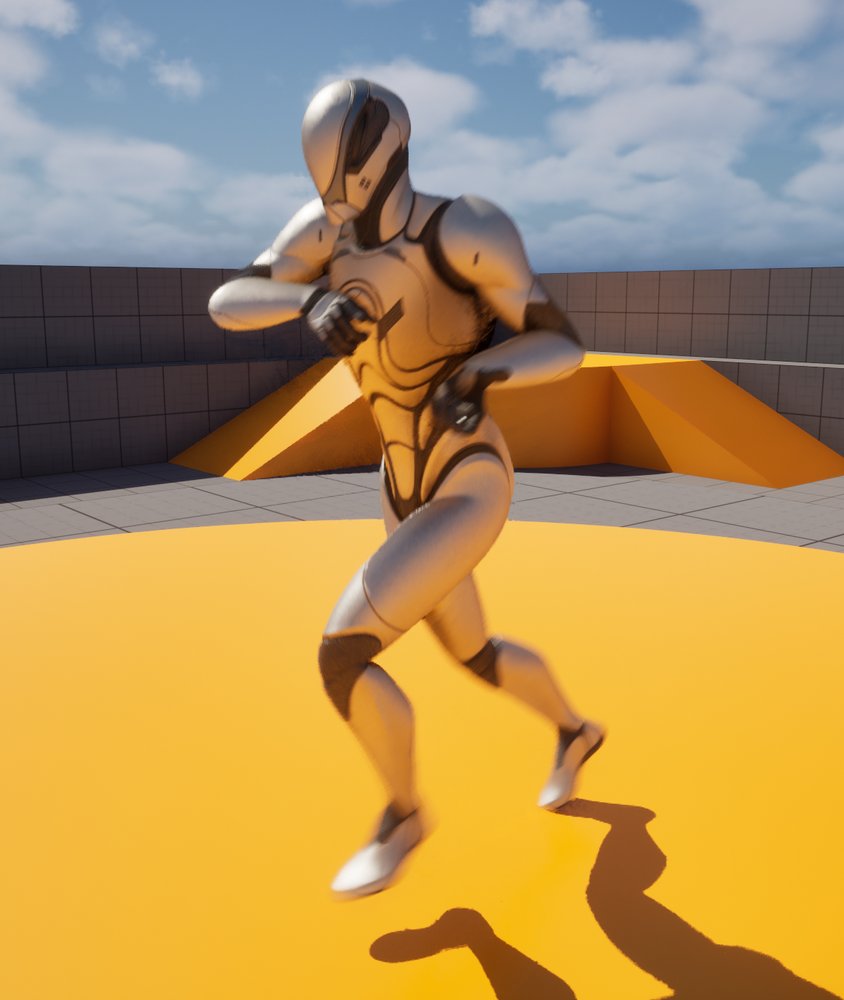
Because it's a static mesh, you can now duplicate it freely — every copy animates with no additional CPU cost.
Where to go next
- Bake types — the other five sources
- Baker panel — what every setting does
- Troubleshooting — if the result doesn't look right